




MyCadillac Mobile App: How to Set it Up
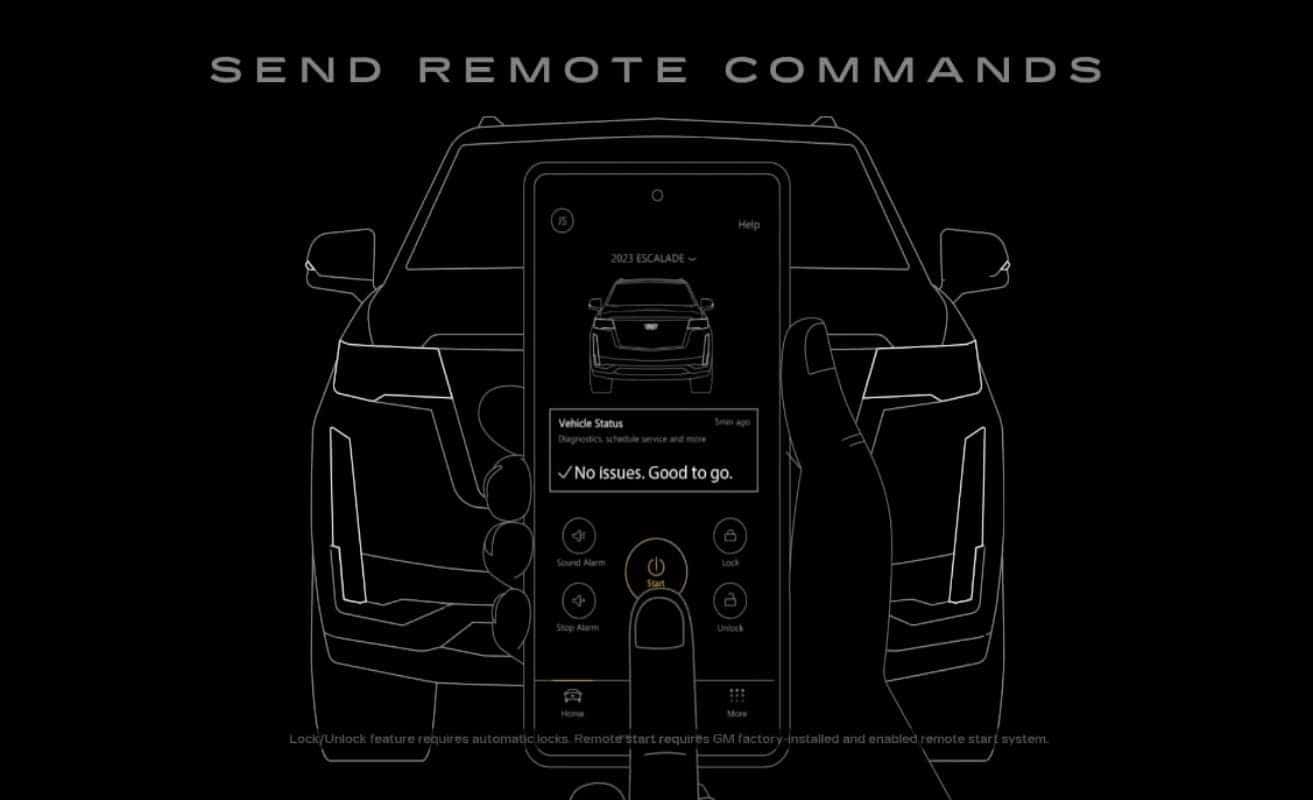
To get started download the myCadillac Mobile App from your phone’s app store. If you have an existing Cadillac, GM or OnStar account, you can sign in using the same email and password. Or, tap create account to create a new profile. Using the same email your dealer or advisor used to set up your OnStar services account. The myCadillac Mobile App will match your account to the vehicle automatically. Then all you have to do is review and accept the terms and conditions, as well as the privacy statement and log in.
If you received a new vehicle in the past 30 days and it’s your first time signing in a guided experience will walk you through the steps to finish setting up and personalizing your new vehicle. Now that you’re signed in, you can send remote commands like starting or unlocking your car. View your vehicle’s health and EV charge status at a glance, find dealerships near you or locate where your car is parked. Some of the features from the myCadillac Mobile App can also be found on your vehicle’s infotainment system.
To sign in for the first time while parked, touch the myCadillac Mobile App icon on the infotainment screen. Review and accept the app’s service terms and privacy statement. Then sign in with your myCadillac account email and password. Once signed in, you can use the app to make service appointments. Request roadside assistance, browse your owner manual, and more.
So you’re always connected wherever your journey takes you.
0 comment(s) so far on MyCadillac Mobile App: How to Set it Up